Carrier Search holds our records of active US for-hire freight carriers, gathered from public government records, cleaned and combined into one record each, and refreshed daily. Every workspace can search them; what you do with a carrier belongs to your workspace alone.
Narrow the list
- Open Carrier Search from the menu on the left.
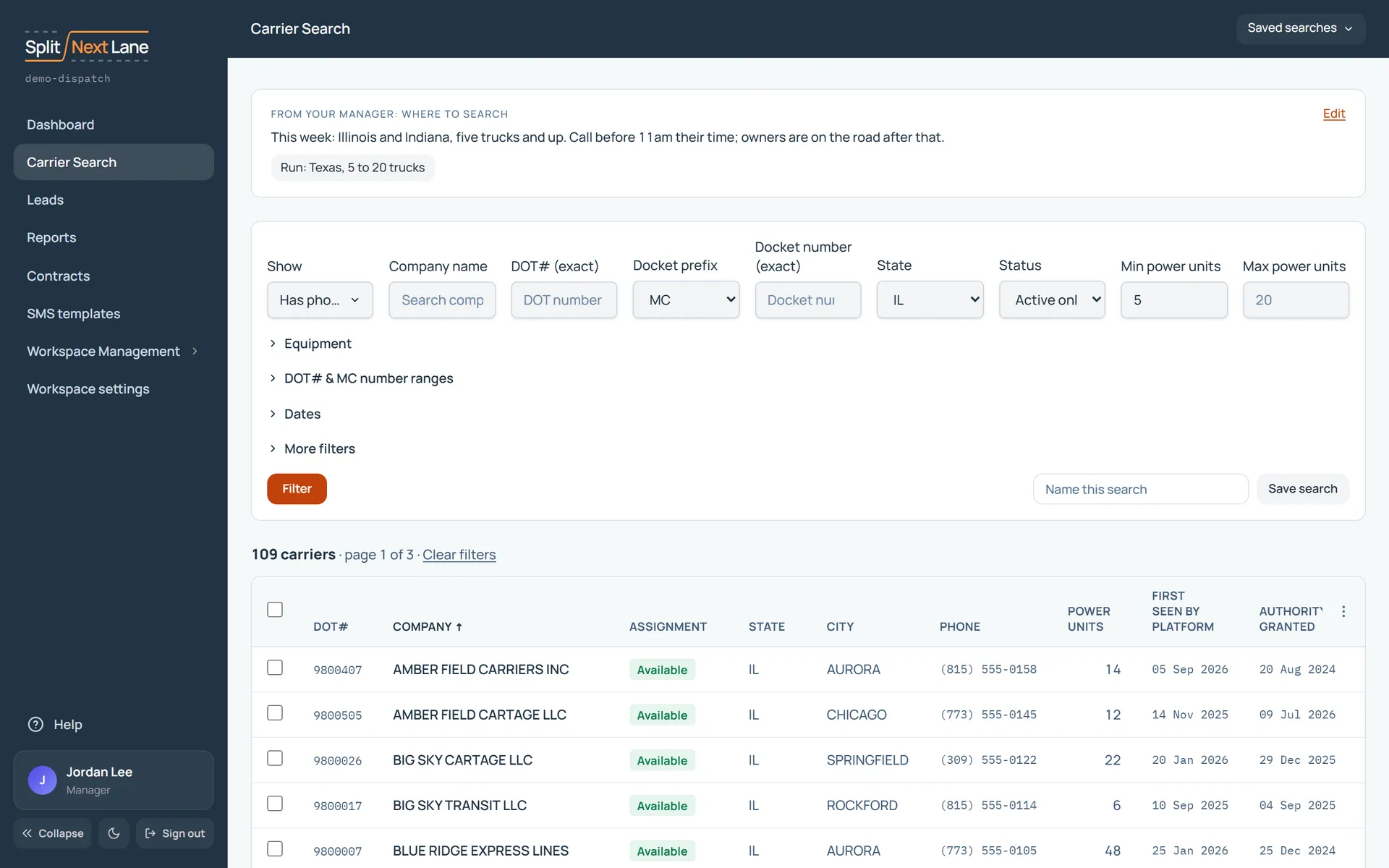
- Set the filters you care about, such as state, city, carrier type, authority status, fleet size, or whether the carrier has a phone number or email on file.
- Choose Filter.
Under Dates, Authority granted within (days) and MCS-150 last filed within (months) find carriers whose date is recent. Authority granted before (days) and MCS-150 last filed before (months) find carriers whose date is older than the number you enter. Use both of a pair for a window: authority granted within 90 days and before 30 days lists carriers granted between 30 and 90 days ago. A carrier with no date on file is left out whenever that date’s filter is set.
To come back to the same list later, use Save search beside the Filter button. Your saved searches are listed under Saved searches.
Truck types
Under Equipment, Truck type has five choices: Flatbed, Straight / box truck, Van (dry or reefer), Intermodal (a container chassis) and Others (tank, dump, grain, car carrier, livestock, log and other trailers, and buses). Each finds the carriers that have that kind of vehicle on record. A tractor on its own matches none of them, since almost every carrier has one. Each carrier’s page lists every type it has under Equipment, with how many vehicles and the month each was last updated, most vehicles first. Truck types come from data posted by carriers in the last 5 years. Many carriers, most new authorities among them, have none on record, so they have no truck type here. A truck leased onto another carrier is recorded under that carrier, not its owner.
A refrigerated trailer and a dry van look the same in this data, so there is one choice for both: Van (dry or reefer). Refrigerated food is a separate filter (Any, Yes or No): it is what the carrier itself declared, and no one checks it.
Turn carriers into leads
- One at a time: open a carrier. Its page is the same page a lead has. Looking at it, or tapping Call or Text, changes nothing; the first change you make, such as logging an activity or setting a status, makes the carrier your lead.
- Several at once: select carriers in the results and choose Add to My Leads.
- For a teammate (Managers): select carriers and choose Assign to…, pick the person, then Confirm assignment.
Assignment organizes ownership inside your workspace. It does not make public carrier data exclusive to you.
On this page
The same steps the page’s tour shows the first time you open it. Replay it any time from Help.
- Narrow the search
Filter by state, equipment, dates and more, then press Filter. The closed groups open by themselves when a filter in them is on.
- Save a search
Name the filters you have set and save them, so you can run the same search again in one click.
- Your saved searches
Managers: Run any saved search from here: yours and the ones shared with the team. You can share a search with everyone, or stop sharing it.
SDRs: Run any saved search from here: yours and the ones your Manager shared with the team.
- The carriers
Managers: Click a carrier to open it. Tick carriers, then Assign to… hands them to a teammate as their leads.
SDRs: Click a carrier to open it. Tick carriers, then Add to My Leads makes them yours.
Something missing, or a way this page could work better for you? In the product, open Help and choose Suggest a feature. We read every suggestion.