The side panel is a Chrome extension included with Core, for every user in your workspace. It works with your Split Next Lane account only.
Get it
- Go to the side panel’s page in the Chrome Web Store and choose Add to Chrome.
- Chrome asks you to confirm and lists what the extension can do: read and change your data on all splitnextlane.com sites, which is how it uses the sign-in you already have, and modify data you copy and paste, which is how its keys copy the number or message. It has no access to your dialer’s site or any other site. Choose Add extension.
- Optional: press the puzzle-piece icon at the top right of Chrome and pin SplitNextLane side panel, so its icon is always in view.
Open it
- Sign in to your Split Next Lane workspace in Chrome.
- Go to your dialer’s tab and press the extension’s icon. The panel opens on the right of that tab only.
- The first time, it finds the workspace you are signed in to. Then it opens Due today.
What it can and cannot do
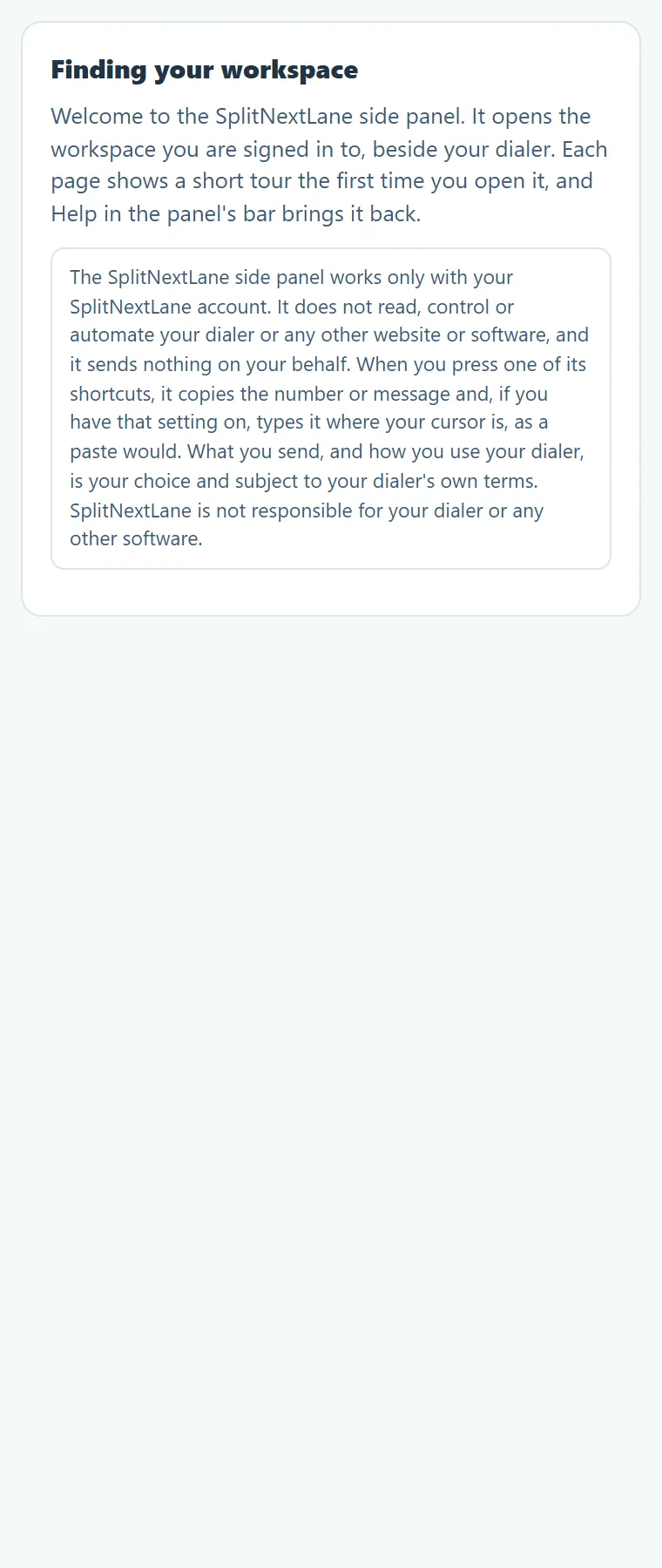
It never presses Call or Send, and never reads your dialer’s page. When you press one of its keys in your dialer’s tab, it copies the number or message and, if you have that setting on, types it where your cursor is, as a paste would. The full wording is in our Terms.
Next
See Your first calling session with the side panel.
Something missing, or a way this page could work better for you? In the product, open Help and choose Suggest a feature. We read every suggestion.