This page is for Managers.
Open Reports. Choose a date range at the top; everything on the page follows it.
What the numbers mean
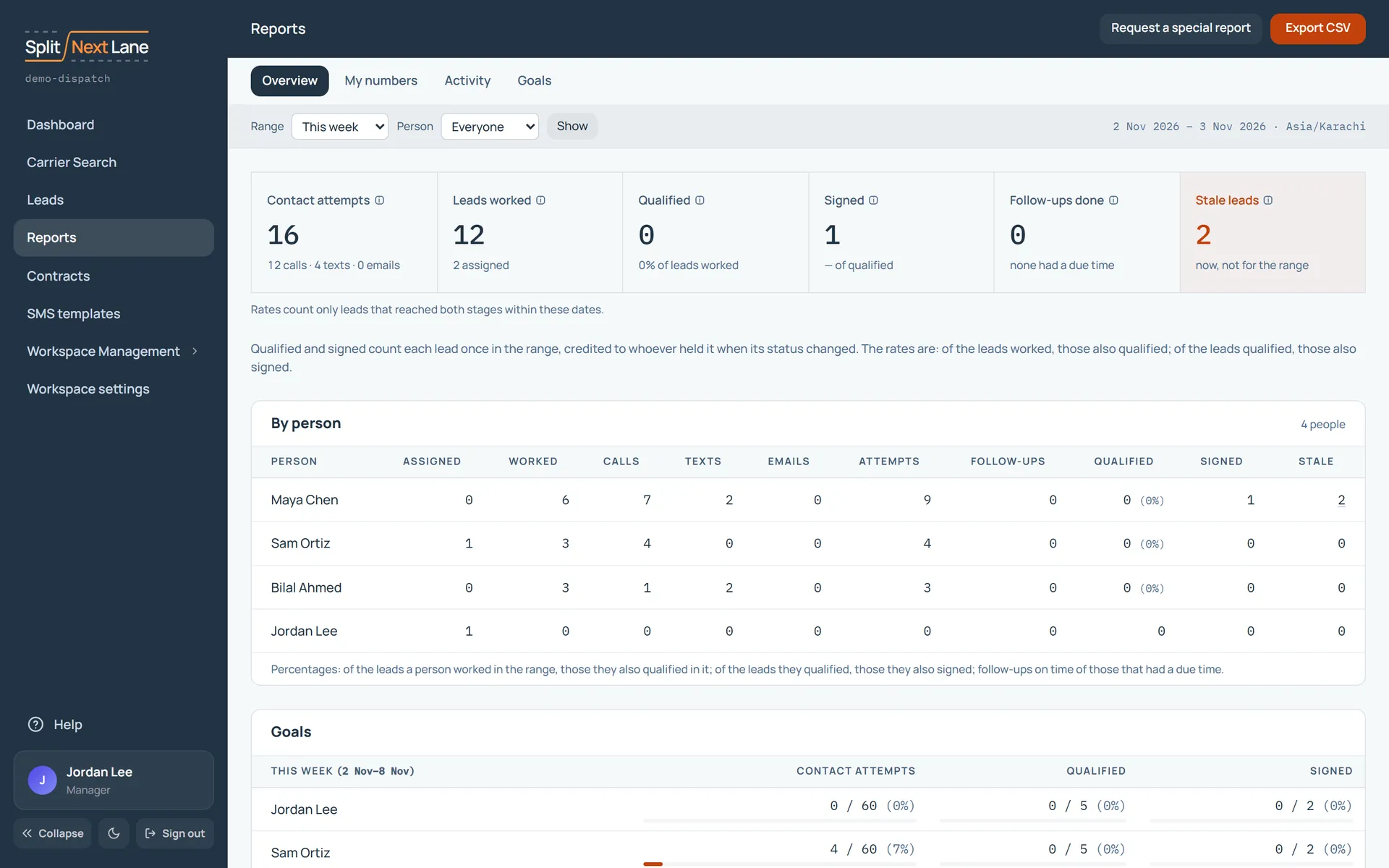
- Contact attempts: every contact logged in the range: calls, texts, emails and voicemails. Each is credited to whoever logged it.
- Leads worked: leads with at least one contact logged in the range.
- Qualified and Signed: leads moved to that status in the range, credited to whoever owned the lead at the time. Each lead counts once.
- Follow-ups done: follow-ups marked done in the range. “On time” means done at or before the due time.
- Stale leads: open leads nobody has contacted for a while. This one is counted as of now, whatever range you chose.
The rates count only leads that are in both groups inside the range. “Of leads worked” is the share of the leads worked in the range that were also qualified in it. “Of qualified” is the share of the leads qualified in the range that were also signed in it. A lead qualified last month and signed this month adds one to Signed and leaves the rate alone, so a rate never reads above 100%.
Further down
By person puts the team side by side. Contact attempts over time shows the pattern across the range. By lead origin shows where your leads came from.
Take it with you
Choose Export CSV to download the numbers. If you need a report the page does not give you, choose Request a special report and say what it should show.
SDRs see their own figures under My numbers. They do not see each other’s.
On this page
The same steps the page’s tour shows the first time you open it. Replay it any time from Help.
- Every report
Overview is the whole team. My numbers is your own work, Activity shows what everyone did, and Goals sets the weekly targets.
- Pick the range
Choose the period the report covers: this week, last month, or your own dates.
- The headline numbers
Leads worked, contacts made, follow-ups, and the leads that became qualified or signed in the range.
- By person
The same numbers for each person. Click a column to sort; click a name for that person's own report.
- Take it with you
Export CSV downloads this report as a spreadsheet. Request a report asks us for one you need.
Something missing, or a way this page could work better for you? In the product, open Help and choose Suggest a feature. We read every suggestion.