People leave, go on holiday, or end up with more than they can call. Reassigning moves a lead to a new owner and keeps everything that came with it.
- Open Leads.
- Tick the leads you want to move. To take everything that matches your filter, use the select-all option above the list.
- Under Reassign all to…, pick the new owner, then choose Reassign.
The lead keeps its status. As the product puts it: progress already made survives a change of owner. The new owner also sees who held it before, as Previously held by.
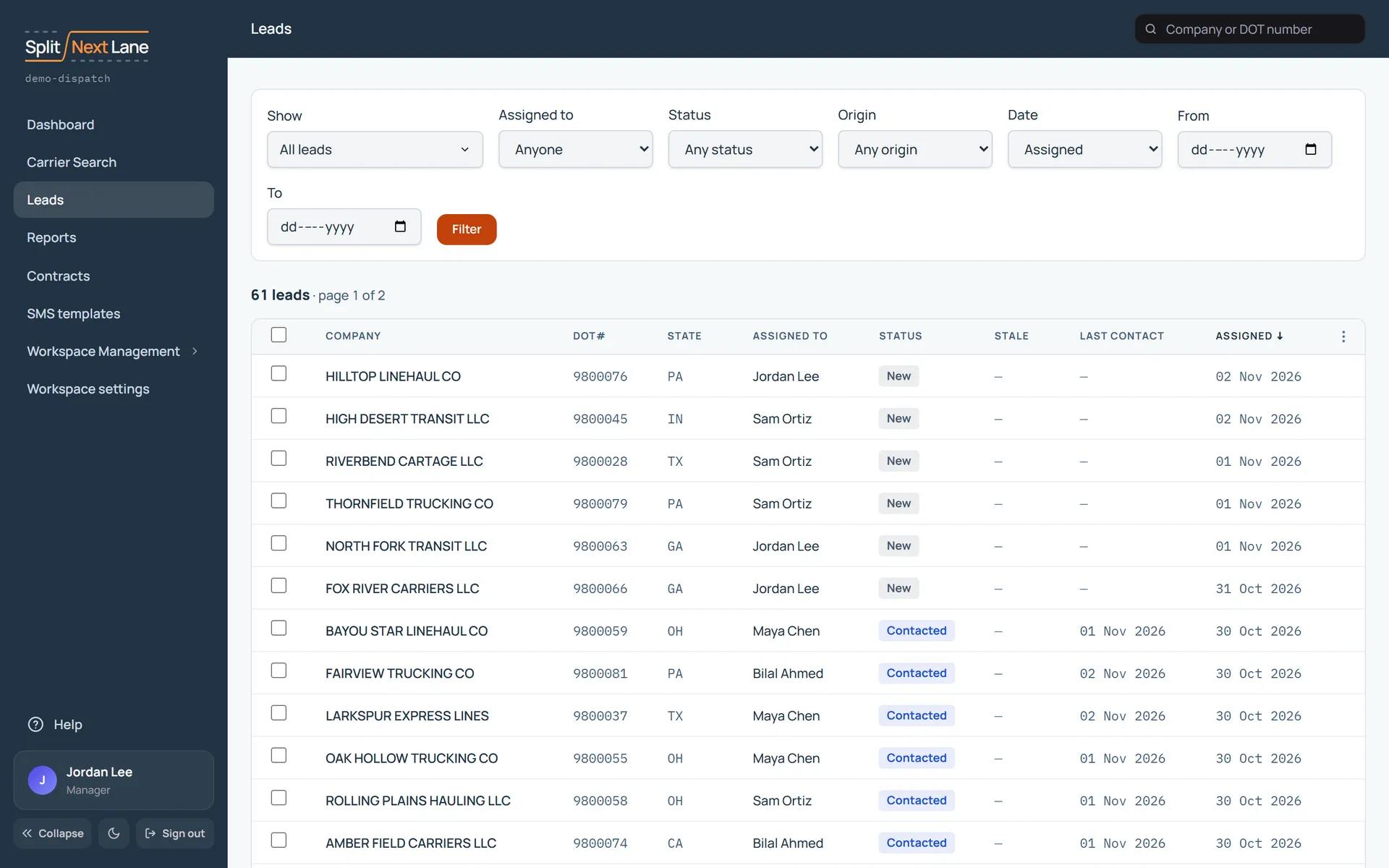
If you are not sure yet who should take them
You can flag leads for reassignment review instead. Tick them and choose the Flag button, which shows how many you ticked, as in Flag 3 for review. They keep their current owner until you reassign them, and the Leads page reminds you they are waiting with a Review them link.
Who can do this
Moving several leads at once, and flagging them for review, are for Managers. An SDR can hand on a lead of their own, one at a time, from the Reassign menu on the lead’s page.
If you are an SDR and you open a carrier a teammate is working, you will see that its activity, notes and documents are theirs. Ask them or your Manager if it should come to you.
Something missing, or a way this page could work better for you? In the product, open Help and choose Suggest a feature. We read every suggestion.