With the side panel open beside your dialer, a whole calling block can run from the keyboard.
The keys that are set for you
| Key | What it does |
|---|---|
| Alt+Shift+K | Types the lead’s current number where your cursor is (or copies it) |
| Alt+Shift+M | Types the text message (or copies it) |
| Alt+Shift+. | Opens the next lead |
| Alt+Shift+, | Opens the previous lead |
The keys you choose
These have no key until you give them one: Log call: No answer, Voicemail, Interested, Not interested and Wrong number, Log SMS sent, Next number on this lead, Next SMS template, Next follow-up due and Open the lead in the CRM.
Choose your keys
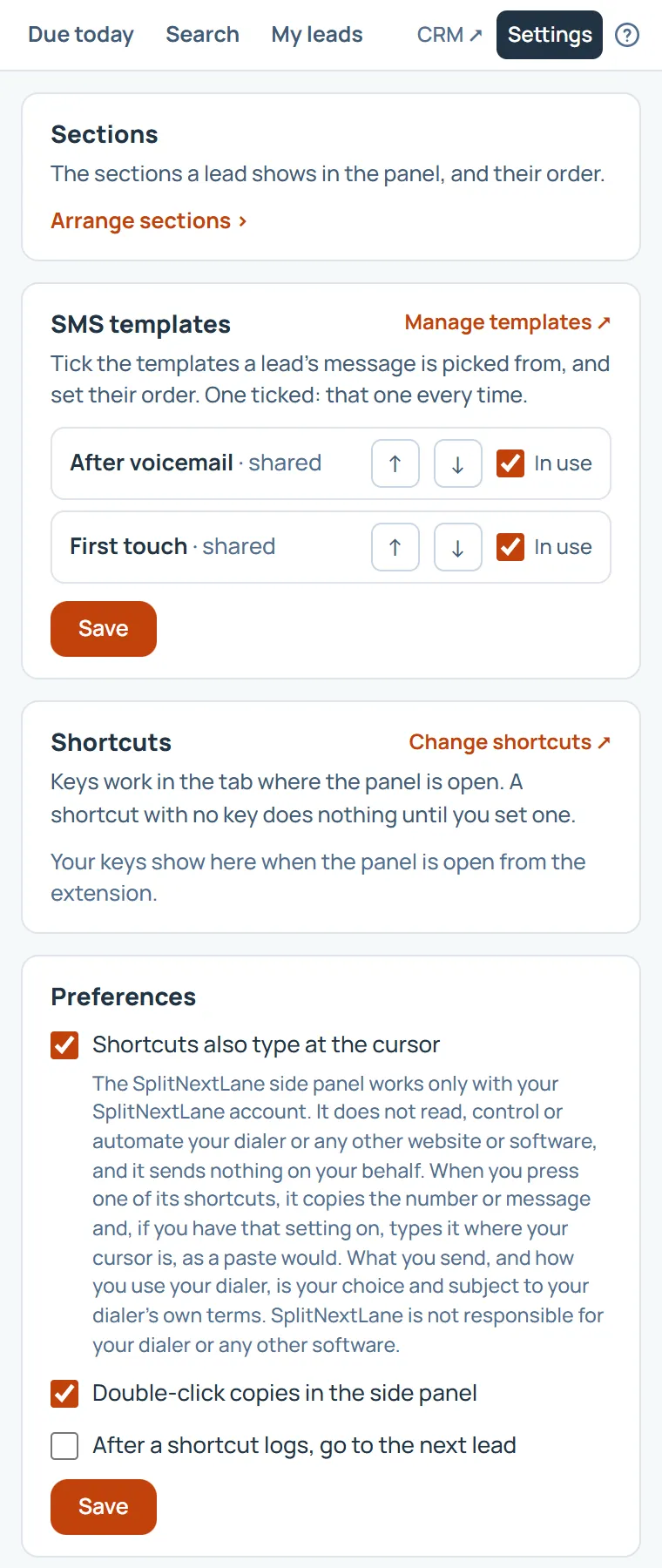
In the panel, open Settings. Under Shortcuts, choose Change shortcuts: Chrome’s own shortcut page opens, where you set or change any key.
Three settings worth knowing
Also under Settings, in Preferences, you choose:
- Whether shortcuts also type at the cursor. Off, the keys only copy, for a dialer where typing does not take.
- Whether a double-click copies a number.
- Whether logging with a key opens the next lead by itself.
Something missing, or a way this page could work better for you? In the product, open Help and choose Suggest a feature. We read every suggestion.