This page is for Managers.
Your team lives under Workspace Management, on the Team tab. The page shows how many people are active and how many invites are still waiting.
To invite someone, see Set up your team.
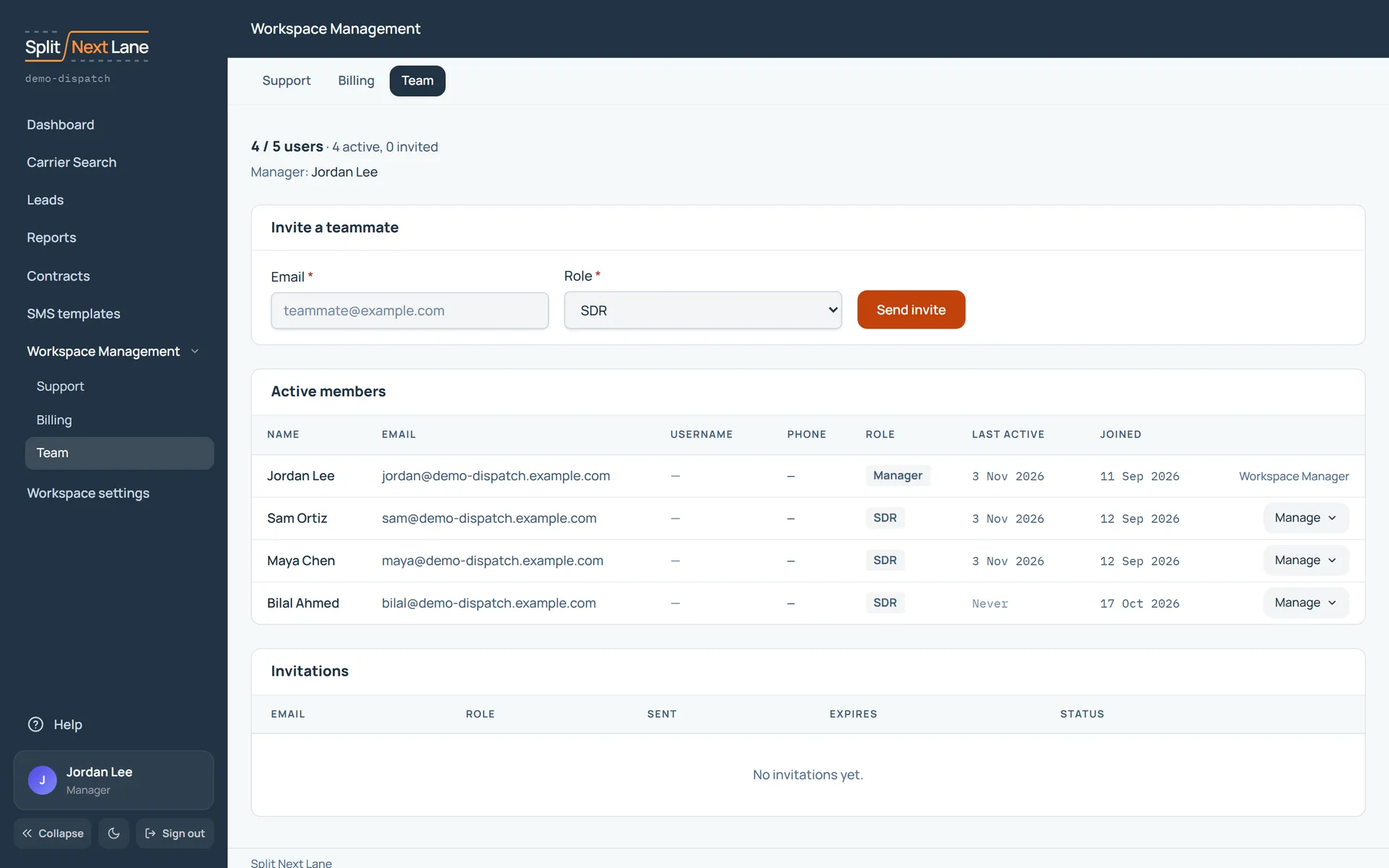
To remove someone
- Find the person under Active members.
- Open Manage on their row and choose Remove from the team.
- Confirm.
Their leads stay in their name and are flagged for reassignment review, so none of the work is lost. You choose who takes them: see Reassign leads.
To hand over the Manager role
A workspace has one Manager. To pass the role to someone else, open Manage on their row and choose Make Manager. You will be asked to confirm, and the product warns you plainly: you lose Manager access immediately.
If your team is full, you will see Add a user, or Choose your package during a trial. Both take you to your billing pages.
On this page
The same steps the page’s tour shows the first time you open it. Replay it any time from Help.
- Running your workspace
Support, Billing and Team, side by side.
- Your seats
How many of your package's users are taken, counting people still invited. When it is full, add a user on the Billing tab.
- Invite a teammate
Send an invitation to their address and choose their role. They join when they accept it.
- Your team
Everyone on the team. Manage changes a person's role, hands over the Manager role, or removes them.
Something missing, or a way this page could work better for you? In the product, open Help and choose Suggest a feature. We read every suggestion.