Leads lists the leads you can see: an SDR’s own, or the whole workspace’s for a Manager.
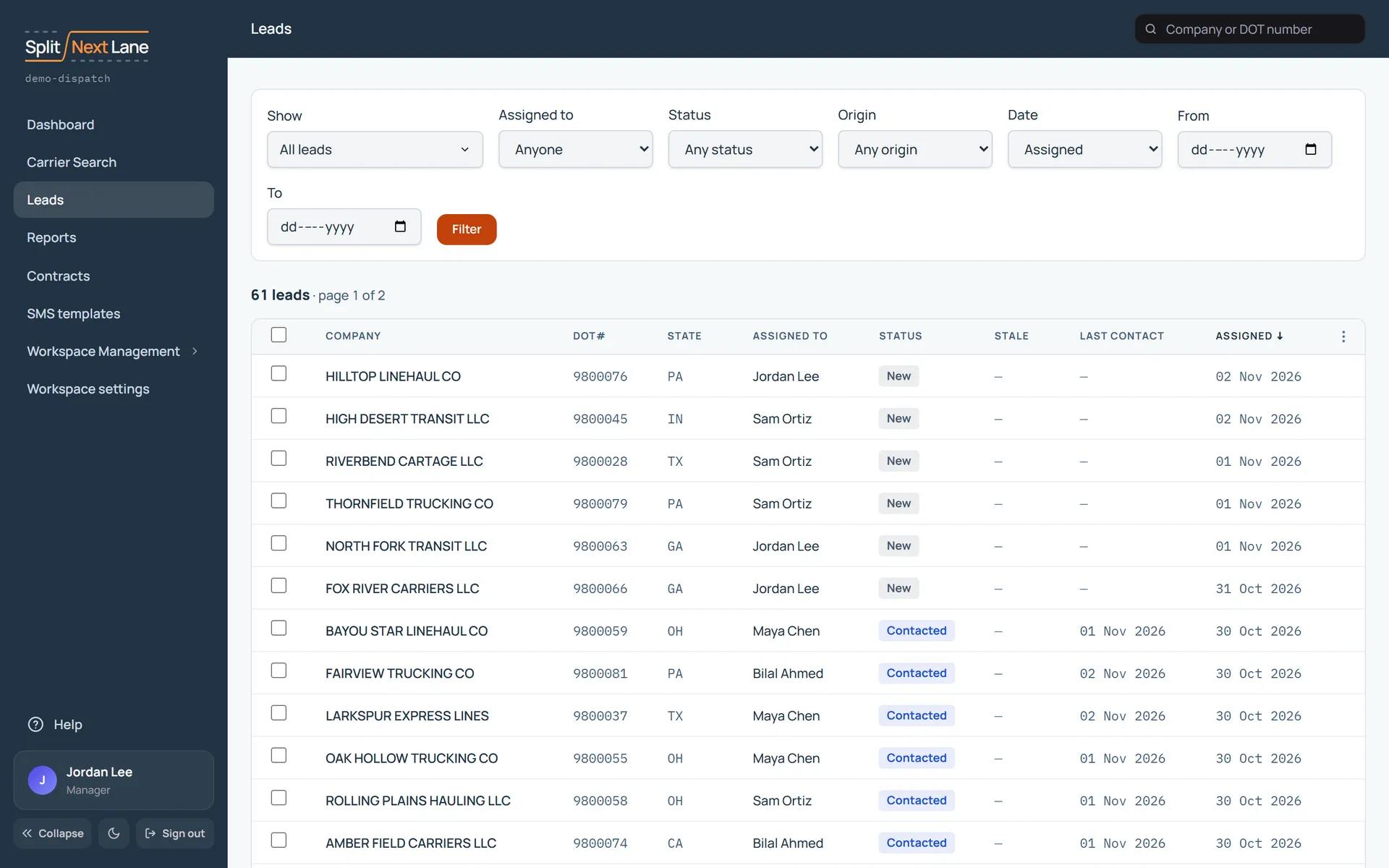
Find the ones you want
Search by company name or DOT number at the top. Filter narrows the list by status, owner, origin and dates; Show holds the yes-or-no filters. The count says how many match across every page, and Clear filters takes you back to the whole list.
Choose the columns
The three-dot menu on the table chooses which columns show. Only you see your choice.
Several leads at once
A Manager can tick leads and reassign them all, or flag them for review. See Reassign leads.
On this page
The same steps the page’s tour shows the first time you open it. Replay it any time from Help.
- Find a lead
Search by company name or DOT number. Your filters stay on while you search.
- Leads to review Managers only
Leads flagged for reassignment review wait here. Review them opens just those leads.
- Filter the list
Managers: Narrow the list by status, owner, dates and more. Show holds the yes-or-no filters.
SDRs: Narrow your list by status, dates and more. Show holds the yes-or-no filters.
- How many
How many leads match, across every page. Clear filters takes you back to the whole list.
- Your leads
Managers: Click a lead to open it. Tick leads to reassign them all at once, or flag them for review.
SDRs: Click a lead to open it. The columns menu chooses what the table shows.
Something missing, or a way this page could work better for you? In the product, open Help and choose Suggest a feature. We read every suggestion.