Open Settings from the panel’s bar.
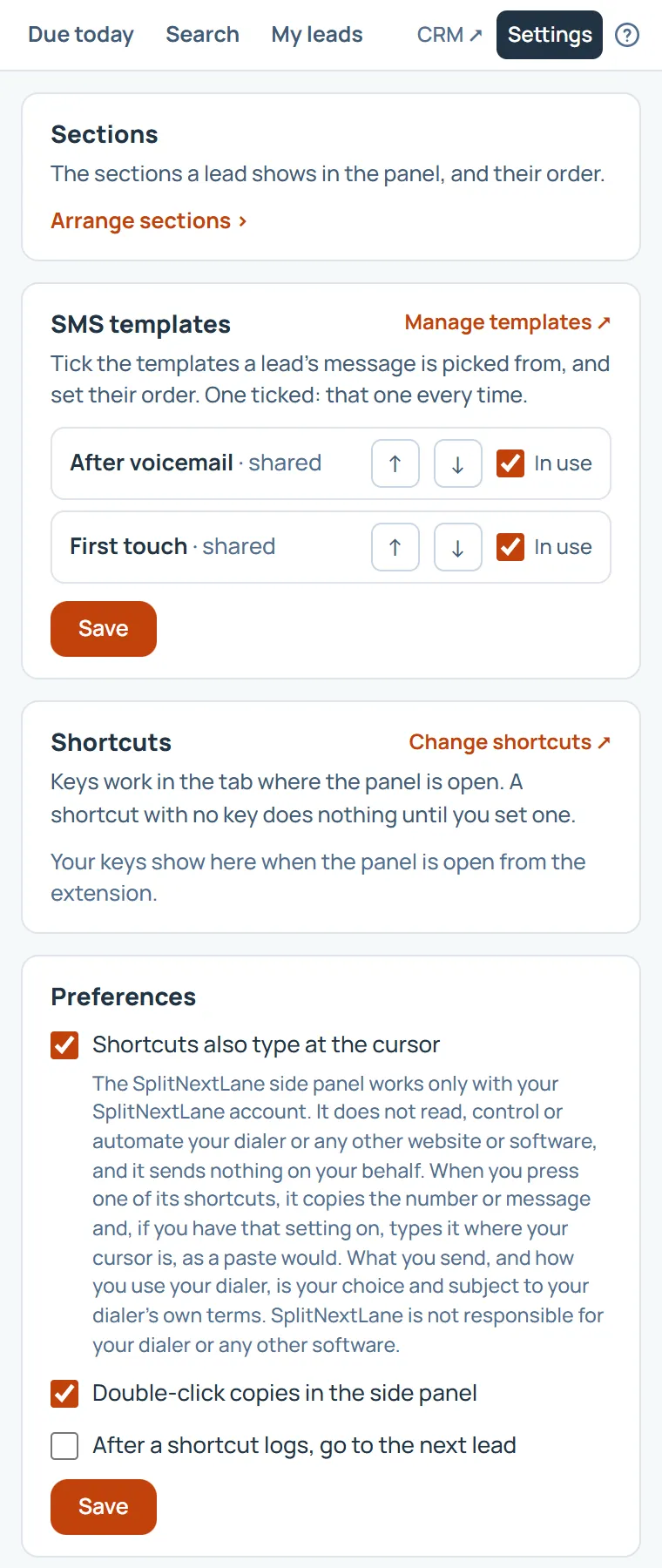
- Sections: which sections a lead shows in the panel, and their order. See The side panel: Sections.
- Your SMS templates: their order, and which ones are in use. The panel picks among the ones in use. Manage templates opens the CRM’s page in a new tab.
- Shortcuts: each key and what it does. Change shortcuts opens Chrome’s own page, where you set them.
- Preferences: whether shortcuts also type at your cursor, whether a double-click copies, and whether a log by shortcut moves you to the next lead.
See Working without the mouse.
On this page
The same steps the page’s tour shows the first time you open it. Replay it any time from Help.
- Sections
Choose which sections a lead shows in the panel, and their order.
- Your SMS templates
Their order, and which ones are in use. The panel picks among the ones in use. Manage templates opens the CRM's page in a new tab.
- Shortcuts
Each shortcut and its keys. Change shortcuts opens Chrome's own page, where you set them.
- Preferences
Whether shortcuts also type at your cursor, whether a double-click copies, and whether a log by shortcut moves you to the next lead.
Something missing, or a way this page could work better for you? In the product, open Help and choose Suggest a feature. We read every suggestion.