Watch: Text and Email Templates
Watch: Build a Load Offer Template
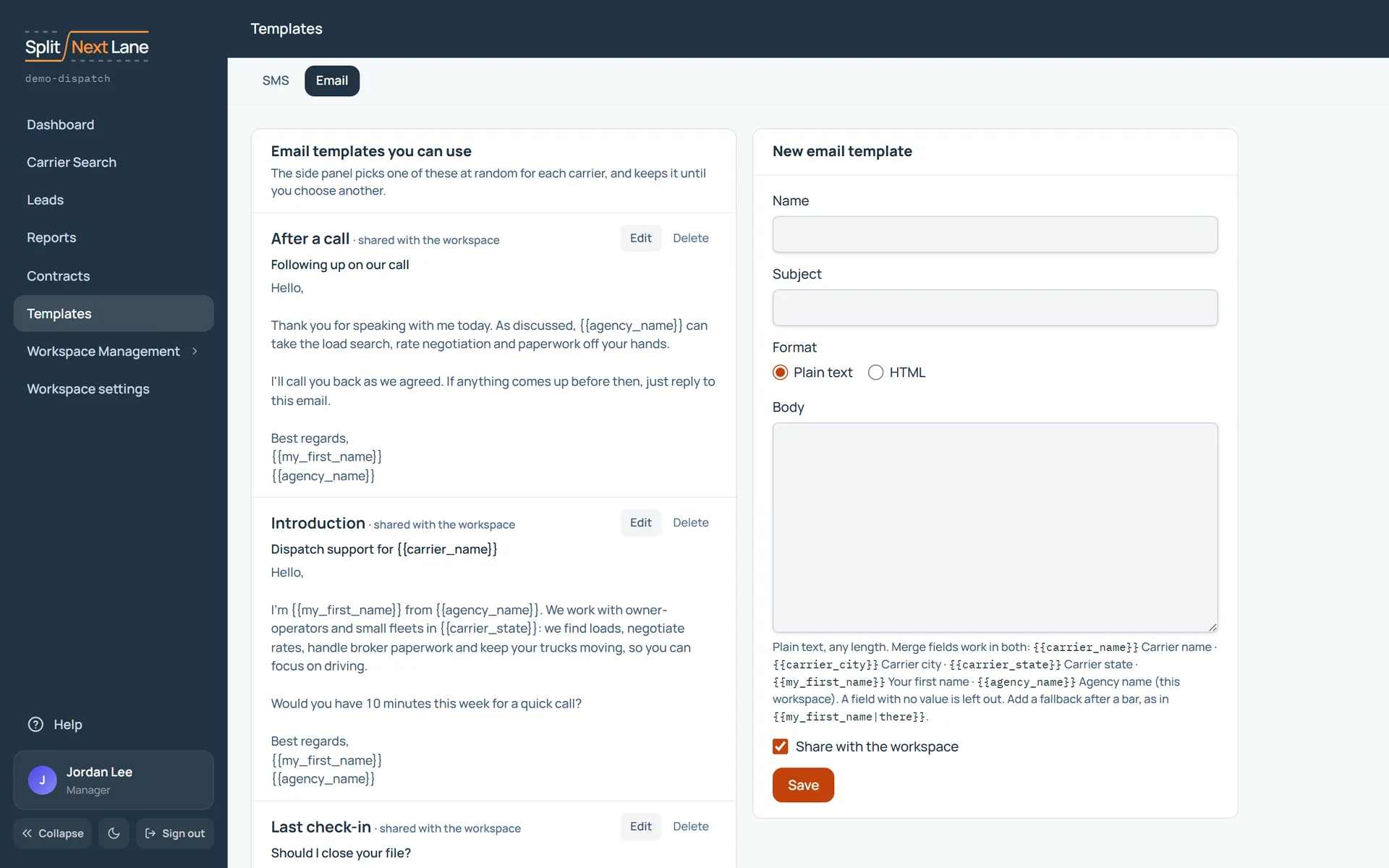
Open Templates from the menu on the left. These are the messages the side panel offers when you text or email a carrier. The page has two tabs, SMS and Email, and both work the same way.
Write one
Give it a name and write the message. An email has a subject too. Merge fields fill in for each carrier, in the subject and the message alike: {{carrier_name}}, {{carrier_city}}, {{carrier_state}}, {{my_first_name}} and {{agency_name}}. Add a fallback after a bar, as in {{my_first_name|there}}, for when a value is missing.
Emails have no length limit. In the panel, Alt+Shift+K types the subject and Alt+Shift+M the body into your own mailbox. See The side panel: the lead.
Plain text or HTML
An email template’s Format is Plain text or HTML. The subject is always plain text.
- HTML is pasted, not drawn. Paste the HTML code into the box; the preview under it shows the email as it will look. To design one, use a free email designer such as RGE Studio (formerly Beefree) (the link is beside the box), export the HTML and paste it here. Its free plan allows 6 exports a month.
- Images are links. An image is an
httpsaddress of a picture hosted somewhere else, as a designer’s export already is. SplitNextLane hosts nothing, uploads nothing and attaches nothing. - Unsafe parts are removed when you save: scripts, forms, embedded frames and anything that could run in the reader’s mail. The preview shows what is kept.
- Merge fields work in HTML too, and a carrier’s details always arrive as text, never as formatting.
- Size. There is no limit, but Gmail shows only the first 100 KB of a message and hides the rest behind “View entire message”. Above that size the page says so, and saves it anyway.
Shared or yours
A Manager’s template is shared with the workspace unless they untick Share with the workspace. Anyone else’s is theirs alone. Only a Manager changes a shared template.
The starter templates
A Manager sees Add the starter templates on each tab. It adds four shared templates to start from (for SMS: first contact, after no answer, after a call, loads in their state; for email: introduction, after a call, missed you, last check-in). Edit or delete them like any other. Pressing it again adds only the ones that are missing.
In the side panel
The panel picks one of your templates at random for each carrier and keeps it until you choose another. The SMS | Email switch in the panel’s message section chooses which kind you are working with. Choose which templates are in use, and their order, in the panel’s Settings. See The side panel: the lead and The side panel: Settings.
On this page
The same steps the page’s tour shows the first time you open it. Replay it any time from Help.
- SMS and Email
Two tabs: the side panel's text messages and its emails. Each works the same way.
- Your templates
The messages the side panel offers. It picks one at random for each carrier and keeps it until you choose another.
- Write a template
Managers: Name it and write the message (an email has a subject too). Merge fields fill in the carrier's and your own details. Tick Share with the workspace to give it to everyone. Add the starter templates gives you four to start from.
SDRs: Name it and write the message (an email has a subject too). Merge fields fill in the carrier's and your own details. Your templates are your own.
Something missing, or a way this page could work better for you? In the product, open Help and choose Suggest a feature. We read every suggestion.