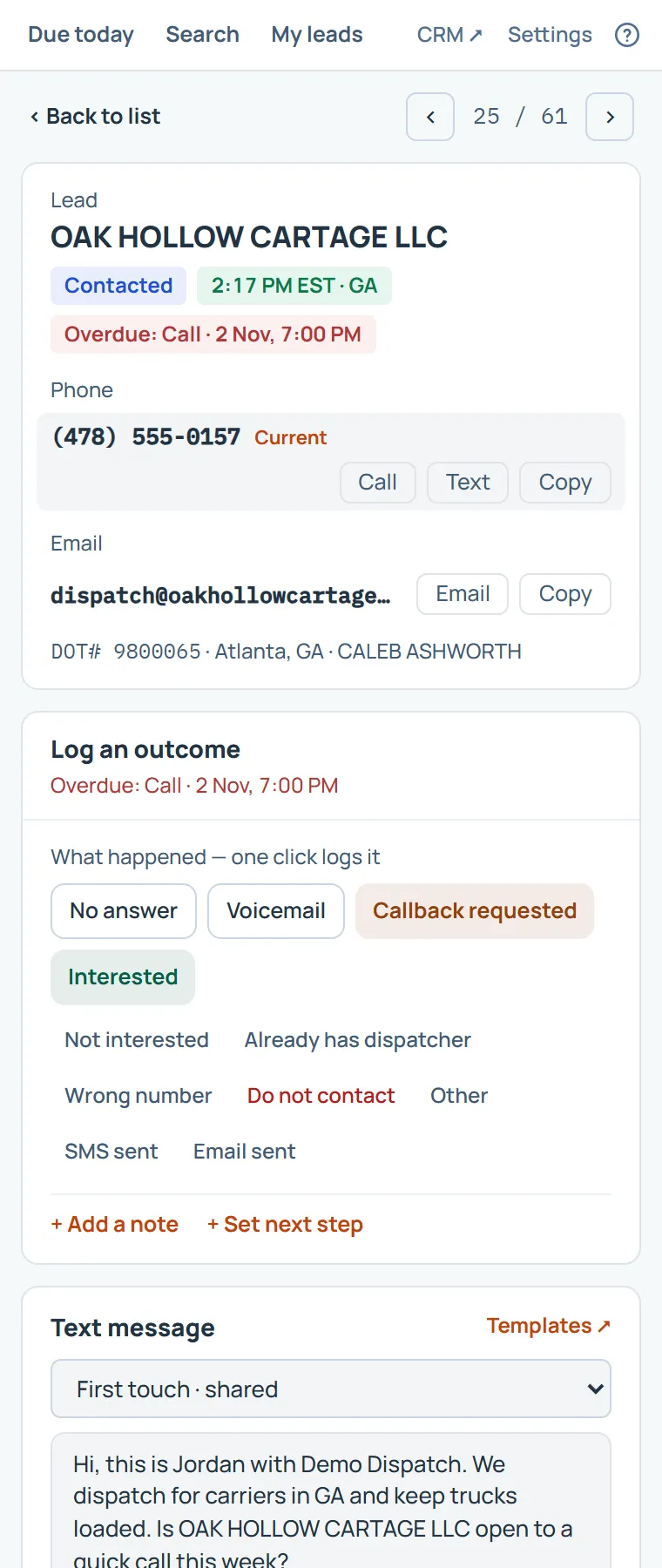
The panel’s lead page is where a calling session happens. See Your first calling session with the side panel for the whole flow, and Working without the mouse for the keys.
- The numbers. Click a number’s row to make it the current one. Alt+Shift+K types the current number into your dialer, or copies it.
- Log the call. One click on what happened. Add a note or set the next step first to save them with it.
- The text message. Your template, filled in for this carrier. Copy number and Copy message, send it from your phone or dialer, then Sent logs it.
- A carrier nobody holds yet. Logging makes it your lead, and Make it my lead claims it.
Choose which sections show, and their order, in Settings. See The side panel: Settings.
On this page
The same steps the page’s tour shows the first time you open it. Replay it any time from Help.
- Work through your list
Back returns to the list. The arrows, J and K, or the Next and Previous lead shortcuts open the next or previous lead.
- Who you are calling
The carrier, its status, its own time (green inside calling hours) and the next follow-up.
- The public record
A link opens the carrier's page on the government's public register in a new tab.
- The numbers
Every number and email, with Call, Text and Copy. Click a number's row to make it the current one: the number shortcut copies the current number, and can type it into your dialer.
- Log the call
One click on what happened logs the call. Add a note or set the next step first to save them with it. On a carrier nobody holds yet, logging makes it your lead.
- The text message
Your template, filled in for this carrier. Copy number and Copy message, send it from your phone or dialer, then Sent logs the text.
- Notes and status
Notes for your team, and the buttons that move the lead to its next stage. On a carrier nobody holds, Make it my lead claims it.
Something missing, or a way this page could work better for you? In the product, open Help and choose Suggest a feature. We read every suggestion.